

Prompt Knowledge Base

The knowledge base shows you how to write better prompts so you get faster, more accurate, and more creative results from Pixic’s AI tools.

Chat

How to talk to the AI like a powerful assistant, including Deepsearch, file analysis, in‑chat image generation, and web/meta search.

Jump to section

Imagen

How to describe visuals so the AI produces the image that’s in your head.

Jump to section

Prompt surgery & troubleshooting

When the AI doesn’t do what you expect

Jump to section

Known limitations & best practices

General limitations of AI

Jump to section

1. Using Chat Assistant

What to Use Chat Functions For

Use Chat functions when you want Pixic to help you with text or structured information.

  • • Explain or learn – “Explain this topic to me like I’m a beginner.”
  • • Write or edit – emails, blog posts, ads, landing pages, scripts, etc.
  • • Brainstorm – ideas, titles, hooks, angles, campaign concepts.
  • • Code help – debug, refactor, document code, or get examples.
  • • Summarize or transform – turn long text into summaries, outlines, or bullet points.
  • • Plan – content calendars, learning plans, strategies, roadmaps.
  • • Search and analyze – use Deepsearch, file analysis, YouTube meta search, and Google search to work with large documents and external data.

Important: The clearer you are about what you want to achieve with the prompt, the better the result.

Choose the right LLM for your Task

LLM’s have different strengths, abilities and weaknesses. See the LLM characteristics here.

Instruction: Select the right LLM (AI model) for your task.
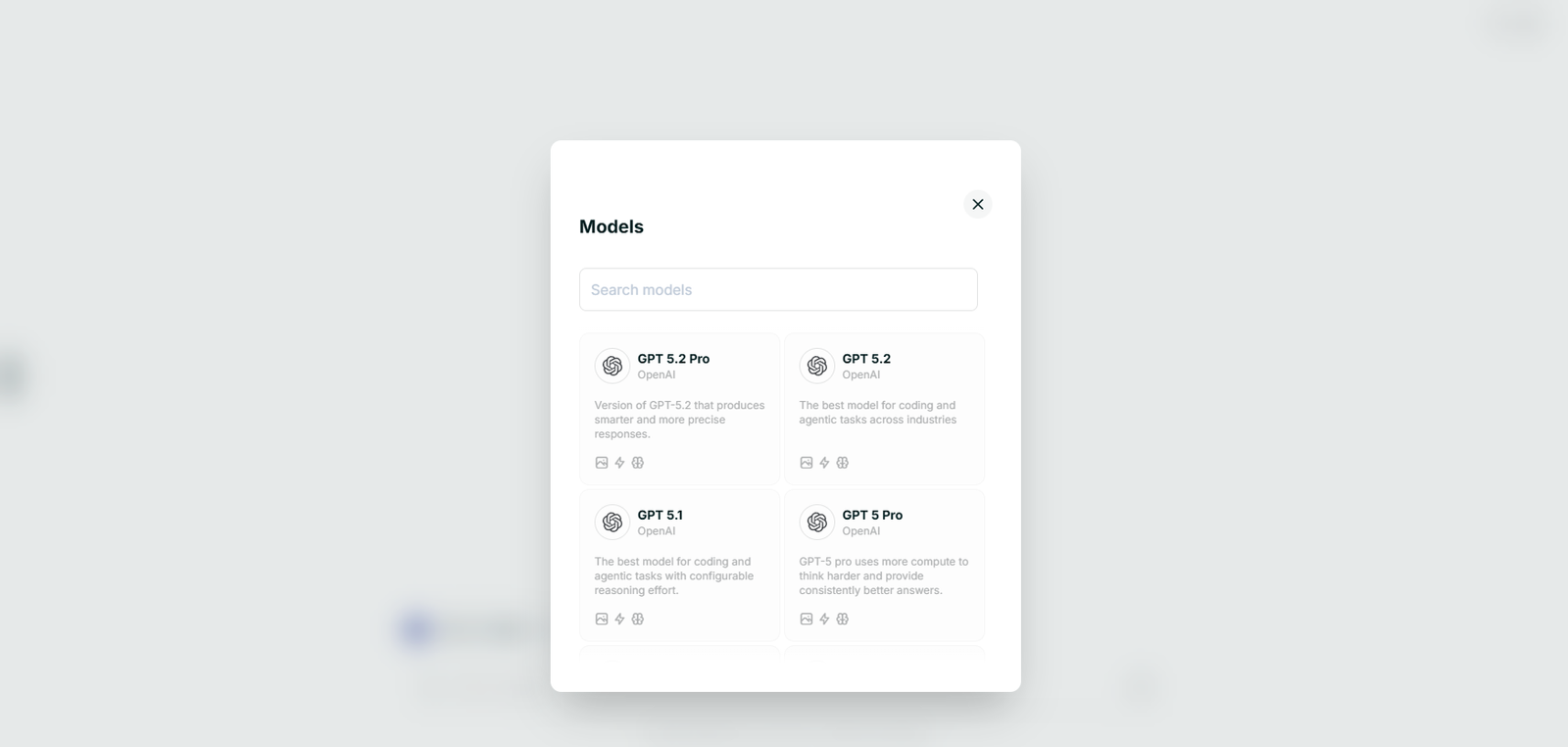
Pixic Chat LLM selection
How to Write a Good Chat Prompt (Step‑by‑Step)

Questions to ask

  • • What do you want?
  • • Who is it for?
  • • What is the context?
  • • How should it sound?
  • • What format should the answer have?
1. State your goal
Start with a verb that matches your task.
Examples: Explain… Write… Summarize… Improve… Brainstorm… Translate… Debug… Argue with me…
Sample: Write a welcome email for new newsletter subscribers…
2. Add context and audience
Tell Chat Assistant about audience, channel, and domain.
Details: who it’s for, where it will be used, any domain.
Sample: Audience: non‑technical small business owners. Use as a LinkedIn post.
3. Define tone and style
Decide how it should sound.
Tone: friendly, professional, casual, formal, playful, persuasive, technical.
Style: bullet points, short paragraphs, step‑by‑step, Q&A, story.
Sample: Tone: professional but friendly. Style: short intro + bullet points + closing sentence.
4. Specify the output format
Tell Pixic how to structure the answer.
Examples: 3 paragraphs; 5 bullet points; table with columns; outline with H2/H3.
Sample: Give me a blog post outline: title + intro + 6–8 sections with 1–2 sentence descriptions.
5. Add constraints and must‑haves
Helps the model stay on target.
Examples: max 200 words, mention benefit X, avoid jargon, write in German, use UK spelling.
Sample: Keep it under 150 words and avoid buzzwords.
6. Iterate
Refine after the first answer.
Examples: Make this shorter. Make this more casual. Rewrite for a beginner audience. Give 3 alternatives with different hooks.
Chat Prompt Examples
Explaining a concept
Prompt: Explain machine learning to a non‑technical audience in simple terms.
Constraints: audience: small business owners; goal: why it matters; length: ~300 words; tone: friendly; format: short intro + 3 bullet points + closing.
Writing a customer email
Prompt: Write a professional but friendly email to a customer who asked about our social media management service.
Context: packages from $500 with content creation, scheduling, reporting; small e‑commerce owner.
Requirements: 3 short paragraphs; explain inclusions; mention price; invite 15‑minute call; confident CTA.
Code explanation and optimization
Prompt: I have this Python function that sorts a list, but it’s slow on large inputs…
Tasks: explain why slow; suggest efficient built‑in approach; provide improved code; keep under 150 words.
Blog post outline
Prompt: Help me create a blog post outline about “How Small Businesses Can Get Started with AI”.
Constraints: audience: small business owners; goal: low‑barrier steps; format: title, intro, 5–7 sections with descriptions, closing CTA.
Advanced Chat Usage: Deepsearch & Integrated Tools

Capabilities

  • • Search and analyze large documents (Deepsearch)
  • • Read and work with uploaded files (file analysis)
  • • Generate images inside Chat
  • • Analyze YouTube videos (via metadata and transcripts)
  • • Use Google search to pull in up‑to‑date web information

Deepsearch

  • • Upload long reports, policies, research, or multiple files
  • • Need specific answers based only on those documents
  • • Want to compare or cross‑reference content

Example: Use Deepsearch on the two HR policy PDFs I uploaded. Find all sections that mention “remote work” or “work from home”, summarize rules, highlight differences, keep under 300 words.

Other patterns: Search across all uploaded documents and summarize what they say about X. Based only on the attached contract, explain the cancellation terms in simple language.

File Analysis

Use file analysis when you upload a file and want Pixic to summarize, extract key points, or transform it.

  • • Summarize it
  • • Extract key points, metrics, or tables
  • • Turn it into another format (slides, emails, outlines, FAQs)

Example: Analyze the PDF report I just uploaded. Give a 5‑bullet executive summary; list 3 key metrics; explain the recommendation under 150 words.

Slides example: Using the uploaded strategy document, create a 10–12 slide outline with titles and 3–4 bullets each, focus on outcomes.

Chat Assistant Checklist
  • ✅ Did I clearly state what I want (explain, write, summarize, analyze, etc.)?
  • ✅ Did I specify the audience and context?
  • ✅ Did I define tone and style?
  • ✅ Did I say how I want the answer structured (bullets, paragraphs, table, etc.)?
  • ✅ Did I mention any length limits or key points to include/avoid?

Advanced tools check: If I need advanced tools, did I clearly ask for Deepsearch, file analysis, in‑chat image generation, YouTube analysis, or Google search?

→ Chat Assistant - User Q&A

Getting started

What is Pixic Chat Assistant?

Pixic Chat Assistant is an all-in-one AI workspace that gives you access to 50+ large language models (LLMs) from providers like OpenAI, Anthropic, Google, DeepSeek, Cohere, xAI, and Mistral — all in a single interface. You can write, research, analyze files, generate images, build code, and more without switching between tools.

Do I need to install anything?

No. Pixic runs entirely in your browser — desktop, tablet, or mobile. There’s nothing to download. Your workspace, content, and credits stay synced across all devices automatically.

Is Pixic Chat really free?

Yes. The free Basic plan gives you 500 credits per month, access to 50+ LLM models, voice dictation, file and URL analysis, Google Search, and saved chats and snippets. You can use it indefinitely at no cost.

How do I start using it?

It’s three simple steps:

  • Pick a model — choose from 50+ LLMs or let Pixic recommend one.
  • Ask naturally — type or speak; attach files, paste URLs, or drop a YouTube link.
  • Refine and save — follow up, adjust tone or format, and save what matters.

AI models

What AI models are available?

Pixic provides access to models from seven major providers:

  • OpenAI: GPT‑5.2, GPT‑5.2 Pro, O3 Pro, GPT‑5.1, GPT‑5 Pro, GPT‑5, GPT‑5 mini, GPT‑5 nano, O4 mini, O1, GPT‑4o, GPT‑4o mini, O3, O3 mini, GPT‑4.1, GPT‑4.1 mini, GPT‑4.1 nano, GPT‑4 Turbo, GPT‑4.
  • Anthropic: Opus 4.6, Sonnet 4.6, Opus 4.5, Sonnet 4.5, Haiku 4.5, Sonnet 4, Opus 4, Opus 4.1, Haiku 3.5, Haiku 3.
  • Google: Gemini 3.1 Pro, Gemini 3 Pro, Gemini 2.5 Pro, Gemini 2.5 Pro Flash.
  • DeepSeek: V3.1, R1.
  • xAI: Grok 4.1 Fast, Grok 4 Fast, Grok Code Fast, Grok 4, Grok 3.
  • Cohere: Command A Reasoning, Command A Vision, Aya Vision 32B, Aya Expanse 32B, Command A, Command R+, Command R, Command R7B.
  • Mistral: Mistral Large, Mistral Medium 3.1, Mistral Small, and more.
Can I switch models during a conversation?

Yes. You can change the AI model at any point in a conversation. This lets you compare outputs or use a specialized model for a specific part of your task.

Which model should I choose?

It depends on your task:

  • Writing & conversation: GPT‑5.1, Claude Sonnet 4.5, or Gemini 2.5 Pro.
  • Coding: GPT‑5.2, Opus 4.5, Grok Code Fast, or DeepSeek V3.1.
  • Complex reasoning: O3 Pro, DeepSeek R1, or Command A Reasoning.
  • Speed & lightweight tasks: GPT‑5 mini, Haiku 3.5, or Mistral Small.
  • Multilingual work: Mistral models and DeepSeek handle many languages naturally.

Features & tools

What can I do inside a Pixic chat?
  • Write and edit — emails, blog posts, landing pages, scripts, documents.
  • Research and analyze — summarize PDFs, compare documents, extract insights.
  • Scrape YouTube videos — turn YouTube links into summaries, timestamps, and notes.
  • Use voice dictation — speak your prompt instead of typing.
  • Save and reuse — bookmark entire chats or specific snippets.
  • Write code — generate, debug, and refactor code with top LLMs.
  • Search Google — get real‑time web results directly in your chat.
  • Analyze files and URLs — upload documents or paste links for instant AI‑powered analysis.
What file types can I upload?

You can upload, deep‑search, and analyze more than 100 different file formats, including PDF, ODT, XML, CSV, CSS, HTML, Twig, DOC, JSON, and many more.

Can I use voice input instead of typing?

Yes. Voice dictation is available on both the free and Pro plans. Just speak your prompt and Pixic converts it to text.

Can I analyze YouTube videos?

Yes. Paste a YouTube link into the chat, and Pixic can generate summaries, pull timestamps, extract key points, and create notes from the video content.

Can I search Google from inside a chat?

Yes. Google Search is built in, so you can get real‑time web results without leaving your conversation.

Smart templates

What are Smart Templates?

Smart Templates are 80+ pre‑built, AI‑tuned workflows powered by DeepSeek R1. They cover writing, code, strategy, marketing, and analysis. Instead of crafting prompts from scratch, you pick a template, add your details, and get production‑ready output in minutes.

What categories do the templates cover?
  • Prompts — Video Prompt Builder, File Analysis Prompt Builder, Idea‑to‑Outline Generator, Smart Translation.
  • Website & development — Landing / Sales Page, Product / Feature Page, Expert Code Generator.
  • Email communication — Personalized Cold Emails, Follow‑up Sequences, Reply Assistant.
  • Business strategy — Go‑to‑Market Brief, Competitive Snapshot, Experiment Planner.
  • Writing tools — Blog Writer, Storyteller, Content Refiner, Research Summarizer, Meeting Notes Builder.
Do I need to know prompt engineering to use them?

No. Smart Templates are designed so you don’t need prompt engineering skills. Just choose a template, fill in your details, and let the AI do the rest.

Pre‑built & custom assistants

Does Pixic come with pre‑built assistants?

Yes. Pixic includes several ready‑to‑use assistants:

  • CodeAssist — generates clean, executable code in 50+ programming languages.
  • Odyssey — creative writing companion for novels, scripts, short stories, poems.
  • PromptGen — turns simple ideas into detailed prompts for text, image, and video generation.
  • Data Scan — extracts insights from any file — PDFs, spreadsheets, images, code, and more.
Can I build my own custom assistants?

Yes, with PRO. Upload your documents (PDFs, docs, text, or URLs), set custom instructions (tone, format, behavior, rules), and create dedicated assistants that answer based on your specific knowledge. You can create up to 5 custom assistants and reuse them across projects.

PRO features & pricing

What does PRO unlock beyond the free plan?

PRO is $29.99/month and includes 3,000 credits per month, AI Memories, in‑chat image generation, up to 5 custom assistants, and priority support — plus everything in the free plan.

How do credits work?

Every interaction with an AI model uses credits. The amount consumed varies based on the selected model and the length and complexity of your prompt. More powerful models typically use more credits per interaction.

What happens if I run out of credits?

You can top up with additional credits anytime, upgrade to PRO for more features and higher limits, or wait until your subscription renews and credits reset.

Do purchased credits expire?

No. Active credits never expire. They're delivered instantly to your account and added to your active subscription and selected workspace.

Can I cancel anytime?

Absolutely. You can downgrade or cancel your subscription at any time from your account settings.

Privacy & technical

Is my data secure?

Yes. Your files, content, and memories are used only for your sessions and assistants. Pixic does not use your data to train AI models.

Who can see my chats and uploaded files?

Only you. Your conversations, files, and custom assistant data are private to your account and workspace.

What browsers and devices are supported?

Pixic works on all modern browsers — Chrome, Firefox, Safari, Edge — on desktop, tablet, and mobile. No extensions or plugins are required.

Can I save and revisit past conversations?

Yes. Both free and PRO plans let you save entire chats and individual snippets. Access and reuse them anytime from your dashboard.

2. Using Imagen

What to Use Imagen For
  • • Product mockups and marketing visuals
  • •Illustrations, avatars, icons, and social media graphics
  • • Concept art, fantasy scenes, character designs
  • • Banners, headers, thumbnails, and hero images

Note: If you can describe it in words, Imagen can help visualize it.

Choose the right Imagen model

You have 20+ Imagine models at your fingertips. To get the perfect result select the right one.
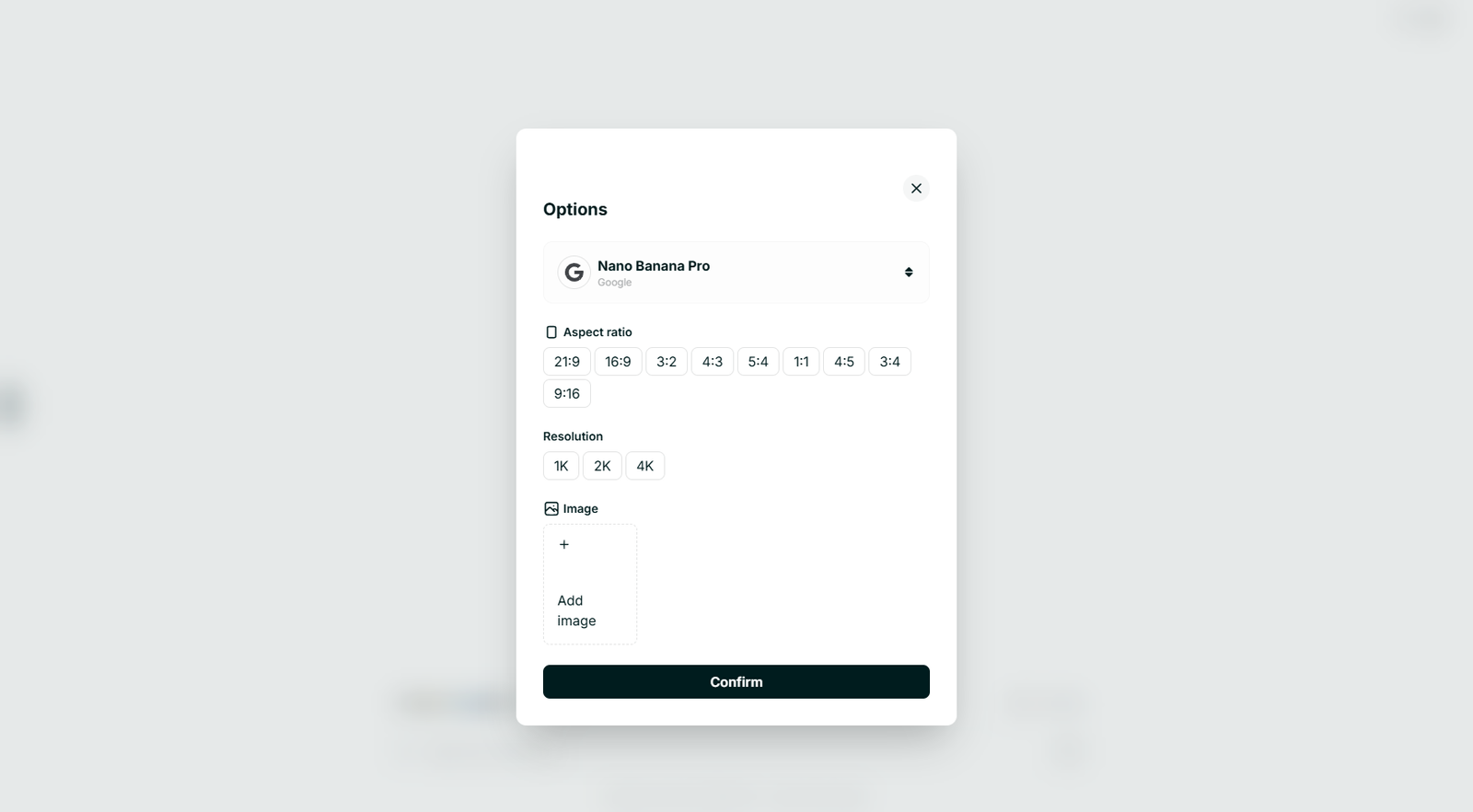
Pixic Imagen model selection
How to Write a Good Imagen Prompt (Step‑by‑Step)
1. Define the main subject
Examples: A matte black water bottle on a desk. A cartoon avatar of a software engineer. A futuristic city skyline at night.
2. Add visual details
Appearance, environment, time/mood, extra elements.
3. Choose a style
Type: photo‑realistic, digital painting, 3D render, cartoon, comic, pixel art, watercolor.
Genres: cyberpunk, fantasy, flat design, minimalism, isometric, retro.
Color/lighting: pastel, neon, warm, cool, high contrast, monochrome.
4. Control composition and camera
Camera distance, subject position, depth of field.
5. Aspect ratio and quality
Aspect ratio: 1:1, 16:9, 9:16. Quality: high resolution, sharp focus, detailed textures.
6. Iterate
After seeing the result, adjust details, style, or composition.
Imagen Prompt Examples
Product mockup (photo‑realistic)
Prompt: A photo‑realistic image of a matte black reusable water bottle standing on a light wooden desk next to a silver laptop and a small green plant in a white ceramic pot.
Details: soft window light, blurred office background, centered composition, high resolution.
Cartoon avatar
Prompt: A friendly cartoon avatar of a young software developer working at a desk.
Details: short dark hair, glasses, navy hoodie, cozy home office, flat 2D, pastel colors, waist‑up.
Fantasy concept art
Prompt: Epic fantasy landscape of a floating island with a crystal castle on top…
Details: golden hour, detailed digital painting, wide shot, dramatic lighting.
Website hero banner
Prompt: A modern, minimalistic hero banner illustration for an AI productivity startup.
Details: abstract shapes, gradient blue/purple, line‑art brain icon, empty space for text, 16:9.
Imagen Checklist
  • ✅ Did I clearly define the main subject?
  • ✅ Did I describe appearance, environment, and mood?
  • ✅ Did I choose a style (photo, illustration, 3D, etc.)?
  • ✅ Did I mention composition/camera angle if it matters?
  • ✅ Did I specify aspect ratio or quality if needed?

→ Imagen — User Q&A

Getting started

What is Pixic Imagen?

Pixic Imagen is an AI image generator that turns text descriptions into visuals. It gives you access to 25+ image models — including FLUX, Stable Diffusion, GPT Image, Google Imagen, Grok Image, SeeDream, and more — in a single, easy-to-use workspace. Describe what you want, choose a model, and get an image in seconds.

Do I need design skills?

No design or illustration skills are required. Just describe your image in plain language — subject, style, mood, composition — and let the AI handle the rest. If you’re not sure how to phrase your idea, you can use the PromptGen assistant to help you write better prompts.

Is Imagen free to use?

Yes. The free Basic plan includes 500 credits per month that work across Pixic Chat, Imagen, and VideoGen. You can generate images with all available models, with no daily limits and no watermark on the outputs.

How do I create my first image?

Three simple steps:

  • • Describe your image — write a prompt explaining what you want to see.
  • • Pick a model and settings — choose from 25+ models and set the aspect ratio or resolution.
  • • Generate and refine — create the image, then tweak the prompt, change models, or regenerate until it fits your needs.

Models & capabilities

What image models are available in Pixic Imagen?

Pixic Imagen gives you access to more than 25 image models, including:

  • FLUX: different variants for high-end or fast, experimental work.
  • Stable Diffusion: SD Ultra, SD Core, SD3 family for diverse styles and quality levels.
  • Google: Imagen models and Nano Banana for crisp, modern visuals.
  • OpenAI: GPT Image models for flexible, general-purpose generation.
  • Other providers: Grok Image / Image Pro, SeeDream, Reve, and more.

Each model has different strengths in style, realism, and cost, so you can choose the best fit for your project.

Which model should I use?

It depends on what you’re creating:

  • • Photo‑realistic products or people: use higher‑end Imagen or SD Ultra variants.
  • • Concept art and illustrations: experiment with FLUX, SD3, or SeeDream.
  • • Fast drafts and variations: pick lighter or “fast” versions of FLUX or SD models.
  • • General use: GPT Image models work well for most everyday tasks.

You can always switch models between generations to compare results and see which one best matches your vision.

What aspect ratios and resolutions are supported?

Imagen supports multiple aspect ratios such as square (1:1), standard landscape (16:9), portrait (9:16), and other common formats. Resolutions can go up to high definition or higher (including 4K on eligible models), depending on the model and options you select.

What kinds of images can I create with Imagen?
  • • Product mockups and marketing visuals.
  • • Blog, social media, and content illustrations.
  • • Concept art, fantasy scenes, and character designs.
  • • Avatars, icons, and thumbnails.
  • • Website headers, hero images, and UI elements.

If you can describe it in words, Pixic Imagen can usually help you visualize it.

Writing good prompts

How do I write a good prompt for images?

A strong prompt usually includes these elements:

  • • Main subject: what the image is about (person, object, scene).
  • • Details: appearance, environment, time of day, mood.
  • • Style: photo‑realistic, digital painting, 3D render, cartoon, flat, etc.
  • • Composition and camera: close‑up, wide shot, centered subject, depth of field.
  • • Aspect ratio and quality: mention if you need square, vertical, landscape, or higher resolution.

The more clearly you describe your idea, the more likely the model will generate what you’re imagining.

Can you show some example prompts?

Product mockup (photo‑realistic):

“A photo‑realistic image of a matte black reusable water bottle standing on a light wooden desk next to a silver laptop and a small green plant in a white ceramic pot. Soft daylight, blurred office background, centered composition, high resolution.”

Cartoon avatar:

“A friendly cartoon avatar of a young software developer working at a desk. Short dark hair, glasses, navy hoodie, cozy home office background, flat 2D style, pastel colors, waist‑up.”

Website hero banner:

“A modern, minimalistic hero banner illustration for an AI productivity app. Abstract shapes, gradient blue/purple background, line‑art brain icon in the center, empty space on the right for text, 16:9 aspect ratio.”

Features, pricing & technical

What features does Imagen include?
  • • Access to 25+ image models from multiple providers.
  • • Multiple aspect ratios and high‑resolution outputs.
  • • No watermark on generated images.
  • • PromptGen assistant for writing better prompts.
  • • All generations saved in your Content Library.
How do credits work for images?

Every image generation consumes credits. The amount depends on the model you choose and the complexity of your prompt. Lighter/faster models use fewer credits, while premium models with higher quality or resolution use more.

Can I use the same credits for Chat, Imagen, and VideoGen?

Yes. Your credits are shared across the entire Pixic platform. The same pool is used for Chat conversations, image generation in Imagen, and video generation in VideoGen.

Does Imagen work on mobile devices?

Yes. Pixic runs entirely in your browser and is fully responsive. You can generate and download images from desktop, tablet, or mobile, and your content stays synced across devices.

Where can I find my generated images?

All generated images and corresponding prompts are automatically stored in your Content Library inside Pixic. You can re-download, reuse, or reference them at any time.

3. Using VideoGen

What to Use Video For
  • • Product teasers and social media ads
  • • Website hero background loops
  • • Short explainer segments and animated scenes
  • • B‑roll or background visuals for voiceovers
  • • Simple animated loops for quotes or announcements
Select the right VideoGen model

Select the right VideoGen model and configuration.
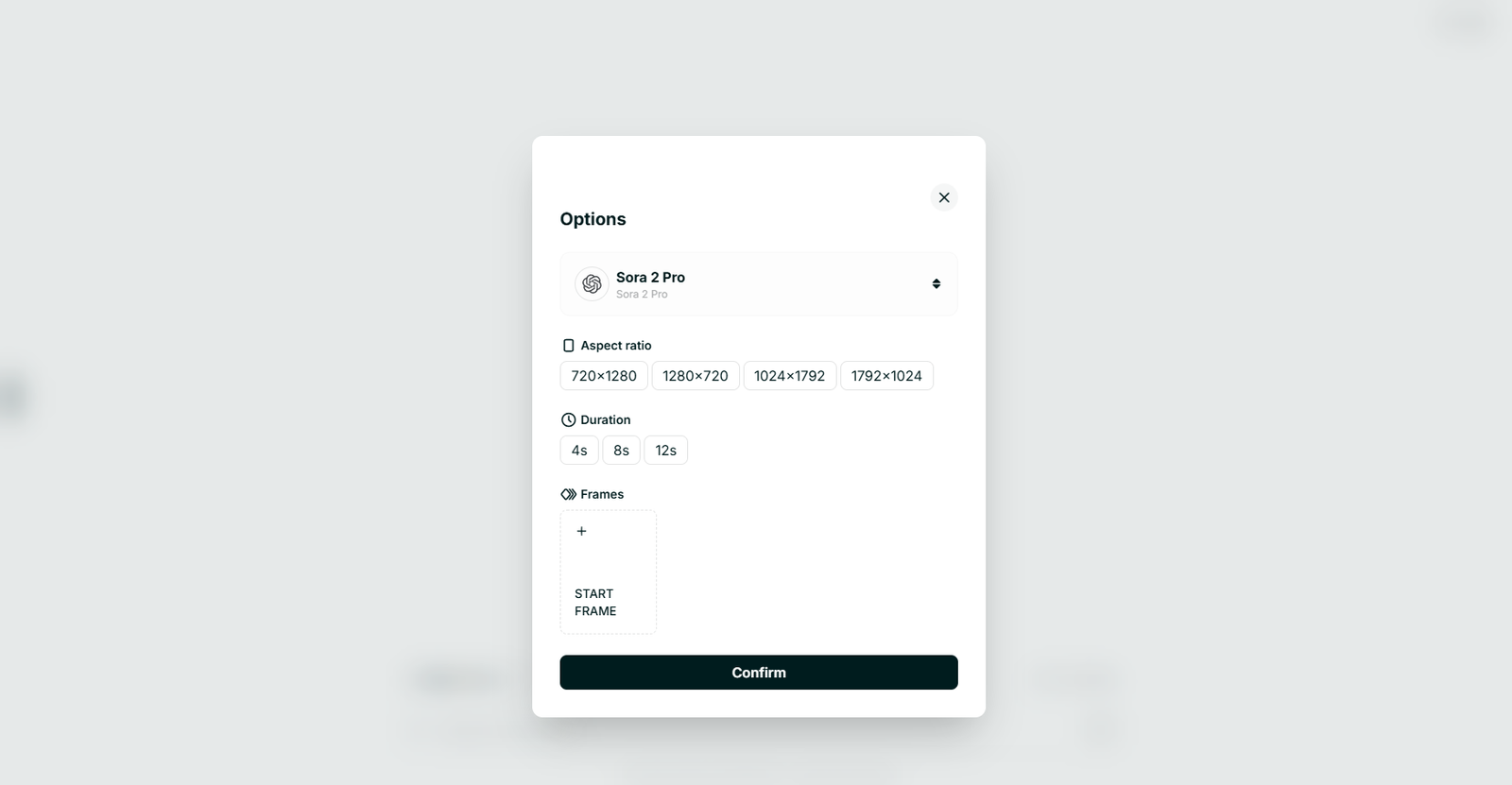
Pixic VideoGen model selection
How to Write a Good Video Prompt (Step‑by‑Step)
1. Purpose
Say what the video is for and roughly how long. Examples: looping background, product teaser, explainer segment.
2. Subjects and setting
Subject(s), environment, mood/time.
3. Motion and camera
What moves, how it moves, camera behavior, transitions.
4. Style
Type, colors, mood.
5. Aspect ratio and platform
Match target: 16:9, 9:16, 1:1. Mention where you’ll use it.
VideoGen Prompt Examples
Website hero background loop
Prompt: A seamlessly looping video for a tech startup website hero background.
Details: abstract flowing lines, smooth motion, modern minimal, soft blue/cyan, static camera, calm mood, 16:9.
2D animated explainer
Prompt: A 2D animated explainer‑style video showing how an AI assistant organizes a messy to‑do list.
Details: flat design, bright colors, glowing orb, smooth transitions, gentle zoom, 16:9.
Social media loop background
Prompt: A 6‑second looping vertical video background for motivational quote posts.
Details: sunlight through leaves, gentle movement, warm tones, soft focus, 9:16.
VideoGen Checklist
  • ✅ Did I define the purpose and approximate length?
  • ✅ Did I describe the main subjects and setting?
  • ✅ Did I explain what moves and how (subject and camera)?
  • ✅ Did I define the style and mood?
  • ✅ Did I specify aspect ratio and platform (YouTube, TikTok, website, etc.)?

→ VideoGen — User Q&A

Getting started

What is Pixic VideoGen?

Pixic VideoGen is an AI video generator that turns text prompts and uploaded images into short videos. It gives you access to 8 AI video models — including Sora 2, Sora 2 Pro, Veo 2, Veo 3, Veo 3.1, and Grok Video — all from a single workspace, with no editing skills required.

Do I need video editing experience?

No. You don’t need to know video editing tools or timelines. You just describe the scene you want, or upload an image to animate, and VideoGen generates a ready‑to‑use MP4 video for you.

Is VideoGen free to use?

Yes. The Basic (free) plan includes 500 credits per month that you can use across Pixic Chat, Imagen, and VideoGen. On the free plan you already get access to Sora 2 with no watermark and no daily limit, so you can start creating videos immediately.

How do I create my first video?

Three simple steps:

  • • Describe or upload — write a text prompt describing your video, or upload an image to animate.
  • • Pick a model and settings — choose from 8 video models, set aspect ratio (16:9 or 9:16) and length.
  • • Generate and download — create the video, preview it, and download it as an MP4 file.

Models & capabilities

What video models are available in VideoGen?

Pixic VideoGen offers 8 models, each with different strengths:

  • • Veo 3.1 — audio support, auto‑enhance prompt, frame adding.
  • • Veo 3.1 Fast — faster generation and more budget‑friendly.
  • • Veo 3 — audio support and prompt enhancement for high‑quality clips.
  • • Veo 3 Fast — quick Veo 3 style videos at lower cost.
  • • Veo 2 — reliable, accurate all‑rounder.
  • • Sora 2 — great quality and included in the free plan.
  • • Sora 2 Pro — premium quality with integrated sound and voiceover.
  • • Grok Video — the first video model from xAI, good for experimentation.

Different models vary in quality, speed, and credit cost, so you can choose what matches your goals and budget.

Which model should I use?

It depends on what you’re trying to create:

  • • Quick drafts and tests: Veo 3.1 Fast or Veo 3 Fast.
  • • Free plan users: Sora 2 is a great starting point.
  • • Highest quality with audio: Veo 3, Veo 3.1, or Sora 2 Pro.
  • • General purpose, reliable results: Veo 2.

You can experiment with different models on the same idea to see which style and motion you prefer.

What are the output specs for videos?

VideoGen supports several common formats:

  • • Length: typically 4–12 seconds per clip (varies by model).
  • • Aspect ratio: 16:9 (landscape) and 9:16 (vertical) for social and web.
  • • Resolution: 720p and 1080p options.
  • • Format: MP4 files, suitable for most platforms.
  • • Audio: optional AI‑generated sound on supported models.
Can I add audio to my videos?

Yes. With Veo 3 and Veo 3.1 models, you can have AI generate sound as part of the video — background music, ambient sound, or simple effects — based on your prompt.

Can I generate videos from images?

Yes. You can upload an image and use it as a reference or starting point for your video. This is useful for animating product photos, illustrations, concept art, or other still visuals.

What to create & prompt tips

What kinds of videos can I make with VideoGen?
  • • Product teasers, ads, and promo clips for social media.
  • • Website hero background loops and subtle UI animations.
  • • Short explainer scenes and animated segments.
  • • Looping backgrounds for quotes or overlays.
  • • Concept video drafts to explore ideas before full production.
  • • Vertical videos for Reels, TikToks, Shorts, and stories.

If you can describe the motion, subject, and style, Pixic VideoGen can usually help you visualize it as a short video.

How do I write a good video prompt?

A strong video prompt usually covers:

  • • Purpose: what the video is for (hero loop, teaser, social post, explainer).
  • • Subjects and setting: what appears in the scene and where it takes place.
  • • Motion and camera: what moves, how it moves, and how the camera behaves.
  • • Style and mood: realistic, animated, flat, cinematic, playful, minimal, etc.
  • • Aspect ratio: whether you need 16:9, 9:16, or another format for your platform.
Can you share some example prompts?

Website hero background:

“A seamlessly looping video for a tech startup hero section. Abstract flowing lines of light on a dark background, smooth continuous motion, modern and minimal, soft blue and cyan colors, static camera, 16:9.”

2D explainer scene:

“A 2D animated explainer‑style scene showing an AI assistant sorting a messy to‑do list into clear categories. Flat design, bright colors, gentle camera moves, smooth transitions, 16:9.”

Vertical social loop:

“A 6‑second vertical loop of sunlight passing through tree leaves, gentle slow‑motion, warm tones, soft focus background, calming mood, 9:16, suitable as a quote background.”

Features, pricing & technical

What features does VideoGen include?
  • • Access to 8 AI video models, including Sora 2 and Veo family.
  • • Text‑to‑video and image‑to‑video workflows.
  • • Optional AI‑generated audio on supported models.
  • • Auto‑enhance prompts and frame adding for extra control (select models).
  • • No watermark on videos, even on the free plan.
  • • All videos saved in your Content Library.
How do credits work for videos?

Every video generation uses credits. The amount depends on the model you choose and, in some cases, the length or options (like audio). Lighter or “fast” models use fewer credits, while premium models with audio and higher fidelity use more.

Can I use the same credits for Chat, Imagen, and VideoGen?

Yes. Credits are shared across the entire Pixic platform. The same pool is used for Chat, Imagen, and VideoGen, so you can decide how to allocate them based on your projects.

Does VideoGen work on mobile devices?

Yes. VideoGen runs entirely in your browser and is fully responsive. You can create and download videos from desktop, tablet, or mobile, and your account stays synced across devices.

Where can I find my generated videos?

All generated videos and their prompts are stored in your Content Library. You can re‑download, share, or reuse them anytime.

Prompt surgery & troubleshooting

When the AI doesn’t do what you expect

Chat Assistant: Answers are too generic or shallow

If the answer feels vague or surface‑level, try:

  • • Ask for structure — e.g. “Give me 3 options with pros/cons” instead of “What do you think?”.
  • • Add context — who is the audience, what is the goal, what constraints matter?
  • • Request step‑by‑step reasoning — “Explain your reasoning step by step.”
  • • Narrow the scope — break one big question into 2–3 smaller, focused questions.
Chat Assistant: The AI misunderstands my request

If the answer seems off‑topic or misses the point:

  • • Rephrase with simple, explicit instructions — avoid mixed asks like “Explain this and also rewrite it in 5 tones and also compare it”.
  • • Give an example of what “good” looks like — “Write it like this example: …”.
  • • Tell it what not to do — e.g. “Do not summarize, focus only on the action items.”
  • • Use follow‑ups — “That’s not quite right, here’s what I meant…” and add extra detail.
Chat Assistant: Hallucinations or incorrect facts

To reduce incorrect or invented information:

  • • Turn on or use Google Search for questions that depend on current data or niche topics.
  • • Ask the model to show sources or reasoning — “List your sources and explain your reasoning.”
  • • Provide trusted documents (PDFs, URLs) and tell the AI to stay within those.
  • • Use precise prompts like “If you are not sure, say you are not sure instead of guessing.”
Chat Assistant: Output is too long or too short

Control length by being explicit in the prompt:

  • • For shorter output — “Reply in 3 bullet points” or “Give a 2‑sentence summary only.”
  • • For longer output — “Write ~1,000 words” or “Give a detailed, step‑by‑step guide.”
  • • Use follow‑ups like “Expand section 2 in more detail” instead of repeating the whole request.
Imagen: The image doesn’t match what I had in mind

If the result isn’t close to your idea:

  • • Simplify the prompt — start with the main subject and environment only, then add details gradually.
  • • Add missing style cues — photo‑realistic, 3D render, flat illustration, watercolor, cyberpunk, minimalism, etc.
  • • Specify composition — close‑up, wide shot, centered subject, background blur, etc.
  • • Remove conflicting phrases — e.g. “minimalistic but highly detailed” will confuse some models.
Imagen: Faces, hands, or text look strange

This is a known limitation of many image models, but you can often improve results:

  • • Use models known for photo‑realism and portraits for people‑focused images.
  • • Avoid very small faces or text — ask for a close‑up if you need facial detail.
  • • For logos or precise text, consider generating a background visual and adding text later in a design tool.
  • • Try several seeds / variations — often one out of a few generations is much better than the others.
Imagen: Style is wrong or inconsistent

If the style is off:

  • • Be very explicit about style: “flat 2D illustration, pastel colors, no gradients” vs “photo‑realistic, high contrast, moody lighting”.
  • • Upload a reference image (if available) and mention “in a similar style to the reference”.
  • • Stick to one clear style in the prompt instead of mixing many (e.g. “pixel art cyberpunk” is fine, but “watercolor + 3D + neon + sketch” is confusing).
VideoGen: The video feels too busy or chaotic

For cleaner, more focused videos:

  • • Limit to one main subject and one simple motion in short clips.
  • • Describe what should stay still and what should move.
  • • Ask for a static camera if you don’t want camera shakes or pans.
  • • Use shorter durations (e.g. 4–6 seconds) for background loops.
VideoGen: Loops don’t feel seamless

To get smoother loops:

  • • Explicitly ask for a seamlessly looping video in the prompt.
  • • Keep motion simple and repetitive (e.g. flowing lines, gentle camera breathing) rather than complex actions.
  • • Use a fixed camera for loops — moving cameras often create visible jumps.
VideoGen: Colors or mood are off

To match your brand or mood better:

  • • Specify color palette or brand colors (you can even mention hex codes).
  • • State the desired mood: calm, energetic, futuristic, playful, minimal, etc.
  • • Remove conflicting adjectives like “dark and bright” or “minimalist but very detailed”.

Known limitations & best practices

General limitations of AI

Are AI answers always correct?

No. Even the best models can be wrong or “hallucinate” facts. They generate likely answers based on patterns, not a perfect internal database. Always double‑check important information, especially for business decisions, health, legal, or financial topics.

Can Pixic replace expert advice or human review?

No. Pixic is designed as a powerful assistant, not a replacement for professional judgment. You should treat outputs as drafts, suggestions, or starting points — and use your own expertise or a human reviewer for anything high‑stakes.

Is real‑time or very recent information guaranteed?

Models have a training cut‑off date and may not “know” the latest events. Google Search and other tools can help access current information, but you should still confirm key facts with trusted sources, especially for breaking news or fast‑changing domains.

Can AI fully understand company context or nuance?

AI can work with the context you provide (files, URLs, custom assistants), but it does not automatically know your internal policies, decisions, or unwritten rules. For consistent results, give clear background, examples, and instructions in your prompts or assistants.

Chat Assistant limitations & best practices

Limitations of Chat Assistant
  • May invent or misinterpret details when prompts are vague or overly broad.
  • Can mirror biases present in training data or user‑provided content.
  • Not ideal for strict numeric calculations or regulatory compliance without review.
  • Long, multi‑step requests can sometimes be shortened or simplified by the model.
Best practices for Chat prompts
  • Be specific about goal, audience, and format (e.g. “3 bullet points for a CTO”).
  • Provide examples when you care about tone or style.
  • Use follow‑ups: “Now make it shorter”, “Now adapt this for LinkedIn”, etc.
  • For sensitive or complex topics, ask for pros/cons or multiple options instead of a single “right” answer.
  • Use your own documents (PDFs, URLs) and custom assistants for company‑specific answers.

Imagen limitations & best practices

Limitations of Imagen
  • Some models struggle with fine text in images (logos, small labels).
  • Faces, hands, and small details may look imperfect in certain generations.
  • Complex prompts with many conflicting styles or instructions can produce inconsistent results.
  • Image models cannot see or verify real‑world trademarks, legal usage rights, or likeness permissions.
Best practices for Imagen prompts
  • Focus on a clear main subject and a few important details instead of long, unfocused prompts.
  • Describe style, lighting, and composition explicitly: “photo‑realistic, warm lighting, centered subject, blurred background”.
  • Use close‑ups for detailed faces or small objects, and simplify backgrounds when you care about clarity.
  • For text or logos, consider generating a background visual and adding text later with a design tool.
  • Generate multiple variations and pick the best; don’t rely on a single try for critical work.

VideoGen limitations & best practices

Limitations of VideoGen
  • Short clips (4–12 seconds) are ideal; longer narrative videos still require editing tools.
  • Perfectly seamless loops are not guaranteed in every generation.
  • Complex scenes with many moving parts can become visually noisy or confusing.
  • Fine‑grained control over every frame is limited — it’s better for concepts, loops, and short segments than frame‑perfect storytelling.
Best practices for VideoGen prompts
  • Keep clips short and focused — one main subject and one primary motion.
  • Describe what should move and what should stay still, and specify camera behavior (“static camera”, “gentle pan”, etc.).
  • For loops, explicitly ask for a seamlessly looping video with simple, repetitive motion.
  • Match aspect ratio to the destination: 9:16 for reels/stories, 16:9 for YouTube or website hero.
  • Use VideoGen outputs as building blocks — combine several short clips in an editor if you need a longer story.

Safety & responsible use

Are there any topics I should avoid?

You should avoid using Pixic for harmful, abusive, or illegal purposes. That includes generating content that violates privacy, promotes self‑harm or violence, or breaks laws or platform policies. When in doubt, treat AI as a tool for creativity and productivity, not harm.

How should I treat AI‑generated content in my workflow?
  • Use AI as a drafting and ideation partner, not an unquestioned authority.
  • Have a human review important outputs, especially for public, legal, medical, or financial communication.
  • Keep a record of your prompts and chosen models for transparency and reproducibility.
  • Respect copyrights, trademarks, and likeness rights when using generated content commercially.

What’s new in Pixic

Latest updates & improvements | Last Update: March-10-2026

New models & providers

Pixic regularly adds new AI models so you can stay on top of what’s possible without juggling multiple accounts. Recent additions include:

  • OpenAI: latest GPT‑5.x, O‑series, and GPT‑4.1 variants for better reasoning, speed, and multimodal support.
  • Anthropic: updated Claude Opus, Sonnet, and Haiku models for safer, more capable long‑form reasoning.
  • Google: newer Gemini Pro models for text, image, and code tasks aligned with Google’s ecosystem.
  • DeepSeek: V3.1 and R1 models focused on strong performance at a lower cost.
  • xAI: Grok models, including Grok Video and Grok Image, for real‑time and experimental use cases.
  • Cohere & Mistral: additional Command and Mistral models for practical business and open‑source‑friendly workflows.

You can see available models directly inside the app in the model picker for Chat, Imagen, and VideoGen. No extra setup or API keys are required.

New in Chat Assistant

Recent improvements to Pixic Chat Assistant focus on making it easier to use multiple models and keep context across your work:

  • • Model switching: change providers and models mid‑conversation to compare answers or specialize for part of a task.
  • • AI Memories (PRO): save important context from chats so the assistant can recall it in future sessions without you repeating yourself.
  • • Smarter file & URL analysis: better handling of large PDFs, web pages, and structured data for summarizing and extracting insights.
  • • Improved YouTube analysis: more consistent summaries and key‑point extraction from long videos.

These changes are designed to make Chat feel more like a long‑term workspace, not just a one‑off conversation window.

New in Imagen (image generation)

Imagen has seen significant updates to both models and controls:

  • • More image models: expanded support for FLUX, Stable Diffusion, GPT Image, Google Imagen, Grok Image, SeeDream, and others.
  • • Extended aspect ratios: from ultra‑wide 21:9 to vertical 9:16, so images fit websites, social feeds, and stories without heavy cropping.
  • • Higher resolutions: support for up to 4K output on eligible models.
  • • PromptGen for images: improved prompt suggestions and structure for more predictable results.

Together, these updates make it easier to go from a rough idea to production‑ready assets directly from Pixic.

New in VideoGen (video generation)

VideoGen has added new models and workflow features for short‑form content:

  • • Veo 3.x & Sora 2.x: support for multiple Veo and Sora variants with different quality, speed, and cost profiles.
  • • AI‑generated audio: ability to generate sound along with the video on supported models by describing the desired audio in your prompt.
  • • Aspect ratio options: one‑click 16:9 or 9:16 outputs to match website hero sections or vertical social formats.
  • • PromptGen for video: better guidance for describing motion, camera behavior, and mood.

These changes are aimed at making it easier to produce short, engaging clips for websites, campaigns, and social platforms without manual editing.

Quality, safety & workflow improvements

Beyond new models and features, Pixic continuously ships smaller improvements:

  • • Better handling of long conversations, preserving context more reliably.
  • • Improved error messages and edge‑case handling for file and URL analysis.
  • • Safer defaults for sensitive topics, with clearer guidance when certain content isn’t allowed.
  • • UI tweaks for faster access to recent chats, templates, and library items.

Many of these changes are subtle, but together they’re meant to make Pixic feel more stable, predictable, and pleasant to use day‑to‑day.

Ready to put your knowledge to work?

Start using Pixic Chat, Imagen, and VideoGen today—free to get started.

Get Started Free Explore PRO features
No credit card required • 500 free credits • Cancel anytime